Can you walk me through getting the Glass Register QR Code on CSP2 draconian website?
Yes—we can do this one screen at a time. Your current Donate page already mentions Glass Register, so that is a sensible place to add it.
We’ll:
Upload the QR code as an image.
Insert it on the Donate page.
Make it clickable so visitors can scan or click to donate, then check both work.
First, open CSP2’s website administration area and send me a screenshot of the screen you see. I’ll guide you through the actual controls.
If you already have the Glass Register QR code downloaded, attach that image here too. If you haven’t downloaded it yet, we can start there.
To upload the image, I have to store it on IPM, if you recall.
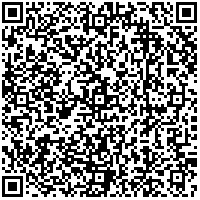
Right—you’re correct. The QR image needs to be uploaded to IPM first, then inserted into the website editor using its web address.
Log into IPM’s cPanel and open File Manager.
Open public_html → images.
Before uploading, give the QR image a simple filename, such as csp2-glass-register-qr.png—keeping its actual file extension.
Click Upload and select the image.
If it is a PNG with that filename, its address would be:
https://www.csp2.org/images/csp2-glass-register-qr.png
Open that address in a new tab to check that the image displays.
Start with File Manager → public_html → images. Send me a screenshot if the folder structure looks different, and we’ll work from the screen you have.
There are subfolders under images
That’s fine—you can upload the QR code directly into the images folder, alongside those subfolders.
Stay in public_html → images, click Upload, and select your QR image. You don’t need to open any of the subfolders.
Once it’s uploaded, tell me the exact filename, including .png or .jpg, so we can use the correct image address.
It's a jpeg image
JPEG is fine. Rename it csp2-glass-register-qr.jpeg, keeping the .jpeg extension, then upload it into public_html → images.
After uploading, open this address to check it displays:
View QR image
Okay, works
Worked for 10s
Good—the image is now ready to use.
Next:
Open the Donate page in CSP2’s website administration area.
Open its page editor.
Click Source to view the HTML.
Copy the existing HTML and paste it here. I’ll show you exactly where to insert the QR code so it fits with the existing donation content.
Your donation to THE CENTER FOR SCIENCE IN PUBLIC PARTICIPATION helps up provide training and technical support to communities, public interest groups, and Indigenous Nations on water pollution, waste disposal, and mining reclamation -
AND - it's tax deductible.
Make a donation online, using the QR code.
You can also use mail-in checks:
Center for Science in Public Participation
224 North Church Avenue
Bozeman, MT 59715
The font is all different sizes on the actual webpage. I hate this site.
…
The HTML mixes the site’s default font size with manually imposed sizes. Replace everything in Source with this version. It removes those overrides, adds your QR image, and removes stray LastPass code.
Your donation to the Center for Science in Public Participation helps us provide training and technical support to communities, public interest groups, and Indigenous Nations on water pollution, waste disposal, and mining reclamation.
Your donation is tax deductible.
Donate online
Scan the QR code below to make a donation through Glass Register.
Donate by check
Please mail your check to:
Center for Science in Public Participation
224 North Church Avenue
Bozeman, MT 59715
Then click Source again to preview, save, and refresh the public Donate page. If the old version remains, use the CMS’s Clear Cache option.
Send me the public Glass Register donation-page link too, so we can make the QR image clickable for people visiting on their phones.